
This post was originally published in January 2016, and was updated in August 2026 | GA4 now has a native Hostname filter that blocks traffic from domains other than your own, most often the ghost spam that spammers send straight to your property. This guide covers how the filter works, how to set it up, and what its current limits mean for you.
Recently, I’ve come across an issue with my Google Analytics. Traffic numbers seemed unrealistically high, and there was one major red flag as to why.
What was the red flag? Google Analytics hadn’t even been installed on my site yet.
This isn’t an uncommon problem, even if the situation might not be exactly the same. It could be higher-than-usual traffic numbers, non-existent landing pages, etc.
So how can you make sure you’re getting an accurate view of your data in Google Analytics? This post will walk you through some of the things I was seeing, as well as explain how to make sure you’re getting an accurate reflection of your data in Google Analytics using the hostname filter.
Why Would Google Analytics Show Traffic From a Site I Don’t Own?
I already knew one thing for sure: any traffic in Google Analytics wasn’t coming from my site. And if it is, my problem seems to be a super-friendly development team with telepathic superpowers.

Since I don’t have an ever-so-convenient, telepathic developer at my disposal, I knew this wasn’t the case. I did know, however, that Google wasn’t lying to me; somehow my Google Analytics tracking code was registering visits, even without my tracking code installed anywhere on my website.
To reiterate, here’s what we knew:
- Google Analytics was registering visits and gathering data.
- Google Analytics was not installed on my website.
So how could Google Analytics register visits to my site without the code being installed? Because it’s not my site traffic it’s gathering. Whether you’re using the gtag.js snippet or Google Tag Manager, your tracking code doesn’t stop working when it’s placed on another site. It only accounts for incoming traffic. You can set a default hostname for your property, but Google Analytics is capable of collecting data outside of that host.
This applies to any site. Regardless of your red flag (uninstalled tracking code, a landing page you know doesn’t exist on your domain, etc.), your tracking code is capable of returning data from another domain and only registering the relative URI as the landing page.
How Do You Check for Traffic From Other Hostnames?
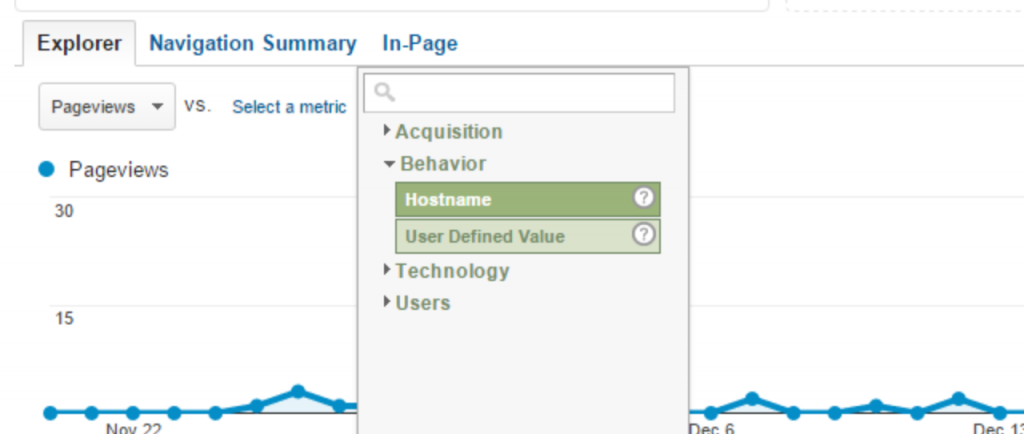
You can confirm whether another domain is sending you data by adding Hostname as a dimension in a GA4 report or exploration and scanning the list of domains that show up.
Here’s how to check in GA4:
- Open a report, such as Reports > Engagement > Pages and screens, or start a new Exploration.
- Add Hostname as a secondary dimension (in a standard report) or as a row dimension (in an Exploration).
- Review the list of hostnames now showing next to your page data. Hostname is the domain that sent GA4 the data, so any domain you don’t recognize is worth a closer look.
And voilà! Here are all of the different domains (or websites) providing data to your Google Analytics property.
If your hunch was right, you’ll see a list of sites you don’t recognize. These are the domains skewing your data.
A word of caution: some domains on this list will be legitimate. Google-owned domains, such as translated or cached versions of your site, are valid. So are your own subdomains or other properties, if you want an aggregate view across everything you own. Build your exclude list from the Hostname report before you touch any filter settings, not from memory.
How to Take Back Your Data using Hostname
GA4 gives you a built-in way to do this: the native Hostname data filter. It replaces the two-step Universal Analytics workaround (an audience segment plus a separate view) this article used to walk through. Here’s how the two compare, and how to set up the current version.
Universal Analytics (retired) | GA4 Hostname Filter | |
Setup location | Admin > Segments > Advanced Conditions | Admin > Data Filters > Create Filter > Hostname |
Filter direction | Include only your domain (regex) | Exclude domains you list (no include option yet) |
Regex support | Yes | No |
Applies to past data | Yes, once the segment is built | No, filters only affect new data going forward |
Setup effort | Two builds: a segment, then a new view | One filter, with a Testing state before it goes live |
Create a Hostname Filter in GA4
You’ll need Editor or Administrator access to your GA4 property. From there:
- Go to Admin, then under Data collection and modification, select Data filters.
- Click Create filter and choose the Hostname filter type.
- Give the filter a clear name, such as “Exclude spam hostname.”
- Enter the hostname (or hostnames) you want to exclude. Unlike the old UA segment, this field does not support regular expressions, so list each domain you want to block.
- Set the filter state to Testing rather than Active. In Testing, matching events are flagged with a Test data filter name dimension instead of being deleted, so you can confirm the filter is catching the right traffic before it goes live.
- After 24 to 48 hours in Testing, review the flagged events. If the filter is only catching domains you meant to exclude, switch it to Active.
For our own site, that means excluding any domain that isn’t www.fourfront.us or fourfront.us. Since regex isn’t available in the current filter, we list both variants directly.
Learn more from Google’s own guidance on GA4 data filters, linked from the Admin > Data filters screen.
A Note on Alternatives: Google Tag Manager
GA4 no longer has separate “views,” so the old two-step workaround (segment plus a dedicated view) is not something you can replicate directly. If you need an include-only rule rather than the exclude-only native filter, the closest option is a Google Tag Manager trigger that only fires your GA4 tag when the page hostname matches your domain. That approach takes more setup than the native filter, but it gives you the include behavior the native filter doesn’t offer yet.
Whichever method you use, remember that GA4 data filters are not retroactive. They only affect data collected after the filter goes active. Historical reports will still include whatever ghost spam already made it into your property.
Frequently Asked Questions
What is a hostname filter in Google Analytics 4?
It’s a data filter, found in Admin > Data collection and modification > Data filters, that excludes events sent from a domain other than the ones you approve. It’s built to catch traffic that never touched your actual website.
How do I create a hostname filter in GA4?
Go to Admin > Data filters > Create filter, choose the Hostname type, name it, enter the hostname you want to exclude, and start it in Testing before switching it to Active.
Are GA4 hostname filters retroactive?
No. Data filters only affect data collected after the filter is active. They won’t clean up hostnames already sitting in your historical reports.
Can a GA4 hostname filter include only my own domain, instead of excluding others?
Not yet. As of 2026 the filter type only supports exclude rules, unlike the old Universal Analytics segment, which let you build an include-only rule with regex. An include option may come later, but it isn’t available now.
What happened to the Universal Analytics method this article used to describe?
Universal Analytics stopped processing new data on July 1, 2023, and historical reporting access ended July 1, 2024. The audience-segment and custom-view steps this page originally walked through no longer apply to any live property.
What is ghost spam, and why does it show up in my hostname report?
Ghost spam happens when someone sends fake hits straight to your Analytics property using a copied measurement ID, without ever visiting your site. Because the visit never happened, it shows up under a hostname that isn’t yours.
Conclusion
Once you know whether your GA4 property is picking up traffic from a domain you don’t own, fixing it is the easy part. The hard part is noticing the anomaly in the first place. Check your Hostname dimension periodically, even if nothing looks obviously wrong.
Have you had a similar experience with your Google Analytics? Know of another solution? We’d love to hear from you!
If you want a second set of eyes on your GA4 setup, FourFront can help. We’ve spent over a decade in web analytics, and we’ll tell you plainly if a data filter is the right fix or if the real issue is somewhere else in your tracking setup. Just contact us.